
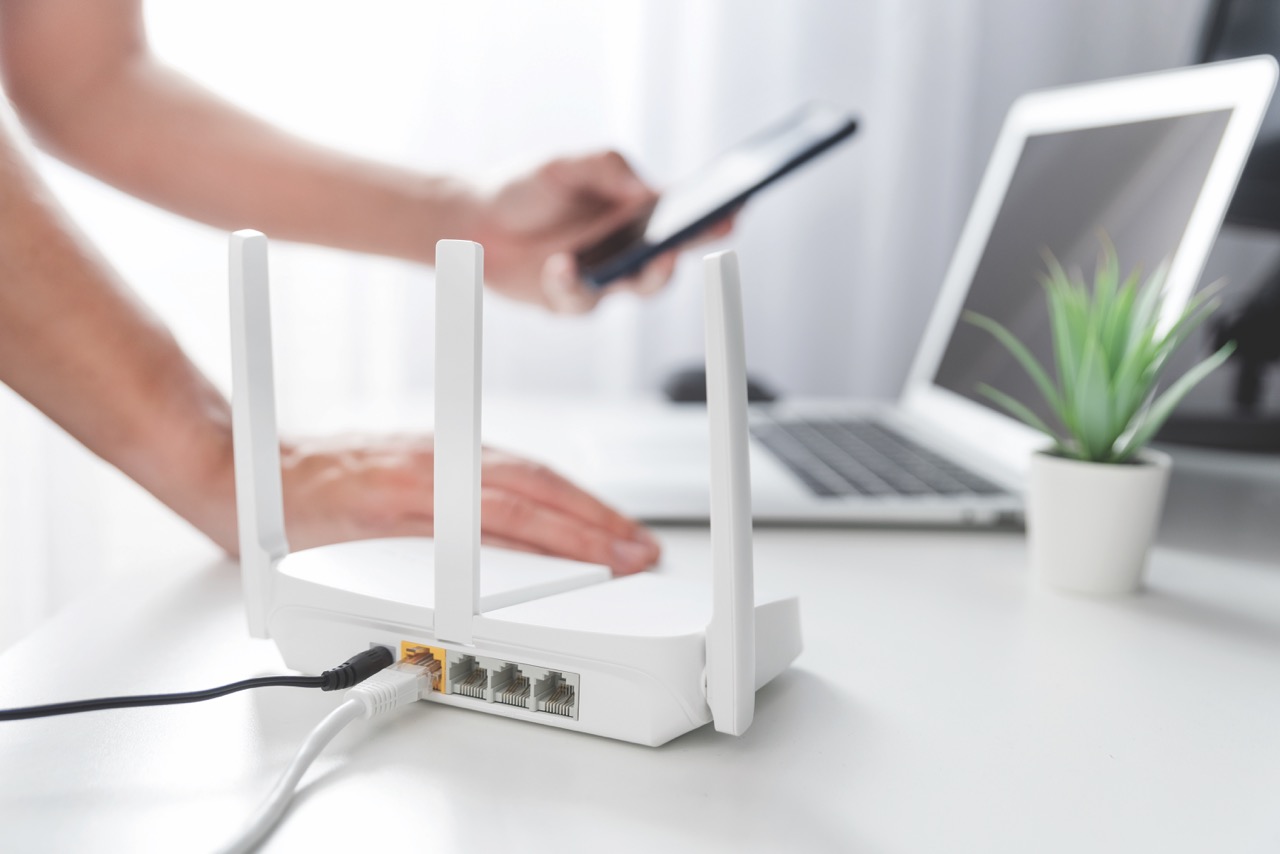
We ask a lot of our home Wi-Fi. Phones, TVs, laptops, doorbells, thermostats, and other smart devices may stay connected around the clock. So, when something suddenly seems slow, or a device won’t cooperate, one of the simplest troubleshooting steps is rebooting your router.
But when should you reboot it, and what does rebooting actually do?
What does a reboot do?
Think of rebooting your router like restarting a computer or smartphone. It shuts down the equipment and restarts it with a fresh connection.
A reboot can clear temporary glitches, refresh connections between your router and connected devices, and help resolve minor performance issues. Your Wi-Fi network name, password, and other personalized settings remain in place.
Rebooting is not the same as resetting your router
A factory reset can erase customized settings and return the equipment to its original configuration. Unless instructed by Steuben County REMC, do not press and hold the reset button on your router.
When should I try a reboot?
A reboot is a good first step when:
- Your internet connection is working, but suddenly seems slower than usual.
- Wi-Fi-connected devices are having trouble connecting to the internet.
- A device that normally connects without a problem suddenly won’t connect.
- Your Wi-Fi connection seems intermittent or unstable.
- Your equipment recently lost power, and your connection has not returned to normal.
- You’re experiencing a minor connectivity issue and want to rule out the router before calling for assistance.
You do not need to routinely reboot your router when everything is working properly. If there is a larger broadband service outage, rebooting your router will not restore service.
How to reboot your router
Option 1: Use the CommandIQ app
Steuben County REMC broadband subscribers can manage their home network through the CommandIQ app, including rebooting compatible Calix router and mesh equipment.
1. Open the CommandIQ app.
2. Select Network.
3. Select your router or network equipment under Network Systems.
4. Choose the option to reboot or restart the equipment.
5. Confirm when prompted.
6. Give the router several minutes to restart and reconnect.
Your Wi-Fi will be temporarily unavailable while the router restarts. Once the reboot is complete, your devices should reconnect automatically.
Menu names or locations may vary slightly depending on the version of the CommandIQ app.
Option 2: Reboot it manually
You can also power-cycle the router:
1. Locate the black or white power cord connected to your router. *Do not unplug the yellow cord.
2. Unplug the router from power.
3. Wait about 10 to 30 seconds.
4. Plug the power cord back in.
5. Allow several minutes for the router to fully restart and reconnect.
There’s no need to unplug every Ethernet cable or change any settings.
Still having trouble?
If rebooting doesn’t solve the problem, avoid repeatedly restarting or resetting the router. The issue may be related to a connected device, Wi-Fi coverage, equipment, or the broadband connection itself.
That’s when it may be time to contact Steuben County REMC for additional troubleshooting.
Before you reboot, ask yourself: Is the problem happening on one device or every device? If only one device is having trouble, try restarting it first. If several devices are experiencing the same problem, rebooting the router is a good next step.